Add a Payslip
In some instances, you may need to make an irregular payment or wish to generate the next period's payslip early.
👉 How-To Guides
How to add a once-off payslip
Once-off payslips should be used in cases where special payments need to be made to an employee. The most common example is payments made on/after termination.
- Go to Employees, and select the relevant employee.
-
In the Payslip section, click the payslip date.
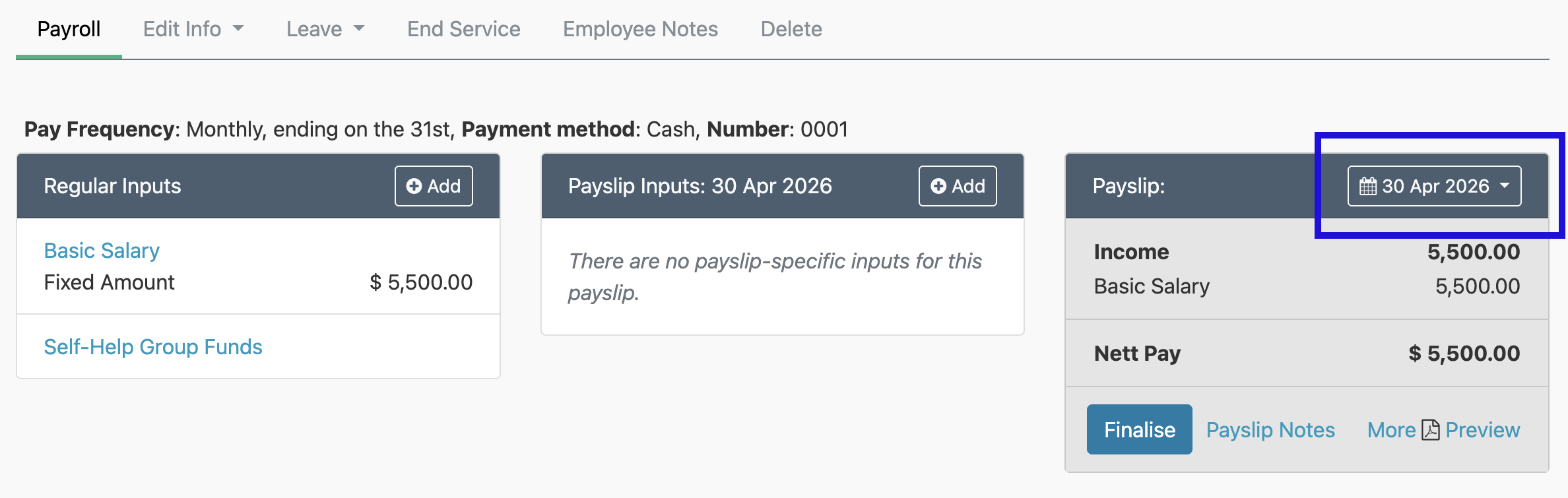
-
Click Manually Add Payslip.
- In the Add Once-Off Payslip section, select the Date on which you will be paying the employee.
- Click Create.
You can also add once-off payslips in bulk. See our Managing Once-Off Payslips in Bulk help page.
Adding items to once-off payslips
Only once-off items and Basic Hourly Pay can be added to once-off payslips – individually or in bulk. For more information on adding items to once-off payslips in bulk, see our Bulk Inputs help page.
How to add the next regular payslip
Not applicable to regular pay periods
As a general rule, you should not need to add payslips for regular pay periods as the system automatically generates the next payslip when the current one is finalised. However, if you do need to generate the next regular payslip without finalising the current one, you can do so by following the steps below.
- Go to Employees, and select the relevant employee.
- In the Payslip section, click the payslip date.
- Click Manually Add Payslip.
- In the Add Next Regular Payslip section, click Create.